Enable SSO with Okta
This guide walks you through configuring Okta as your SAML2 identity provider for single sign-on (SSO) authentication.
Step 1: Create SAML Application in Okta
- Log into your Okta Admin Console
- Navigate to Applications > Applications
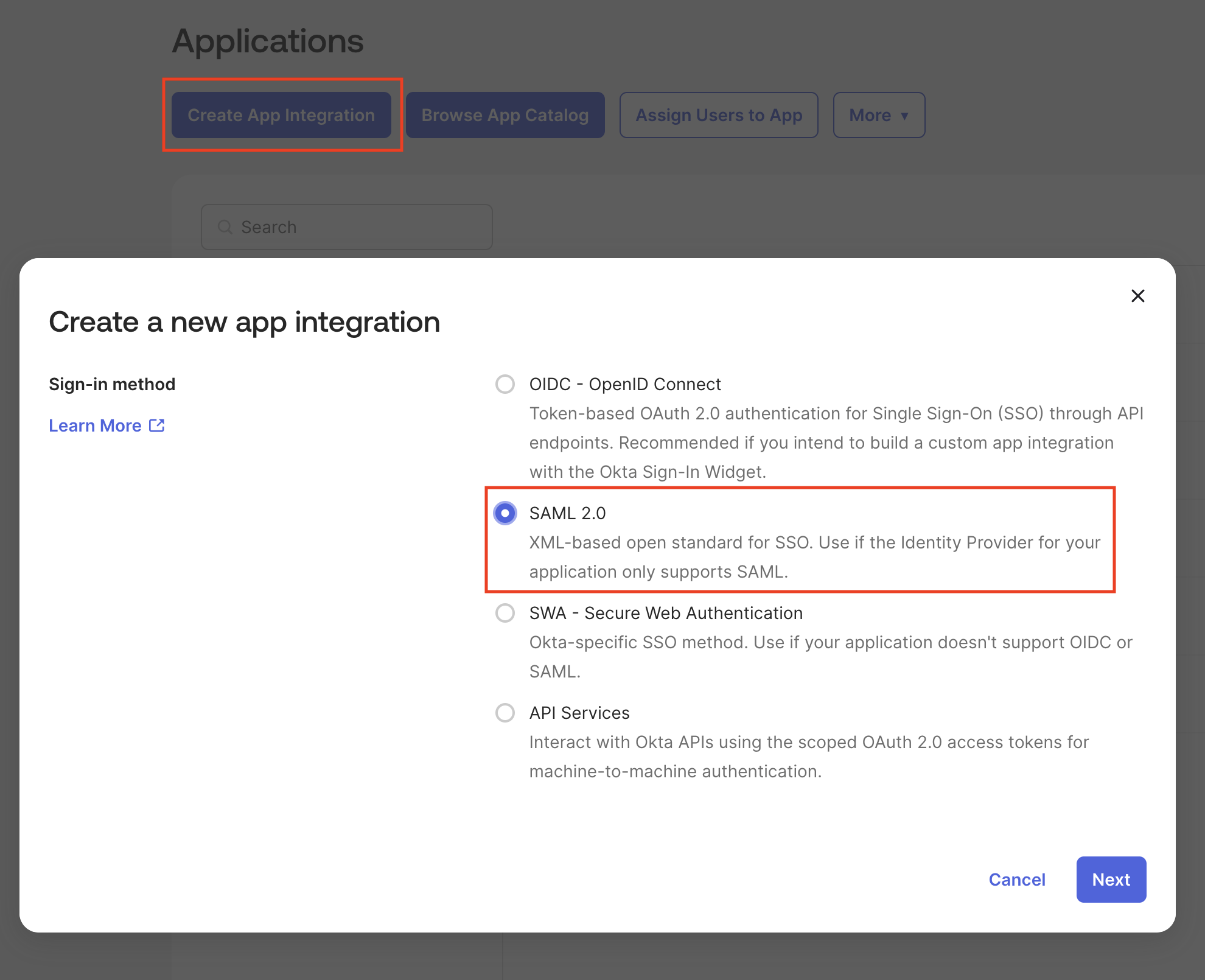
- Click Create App Integration
- Select SAML 2.0 and click Next
Step 2: General Settings
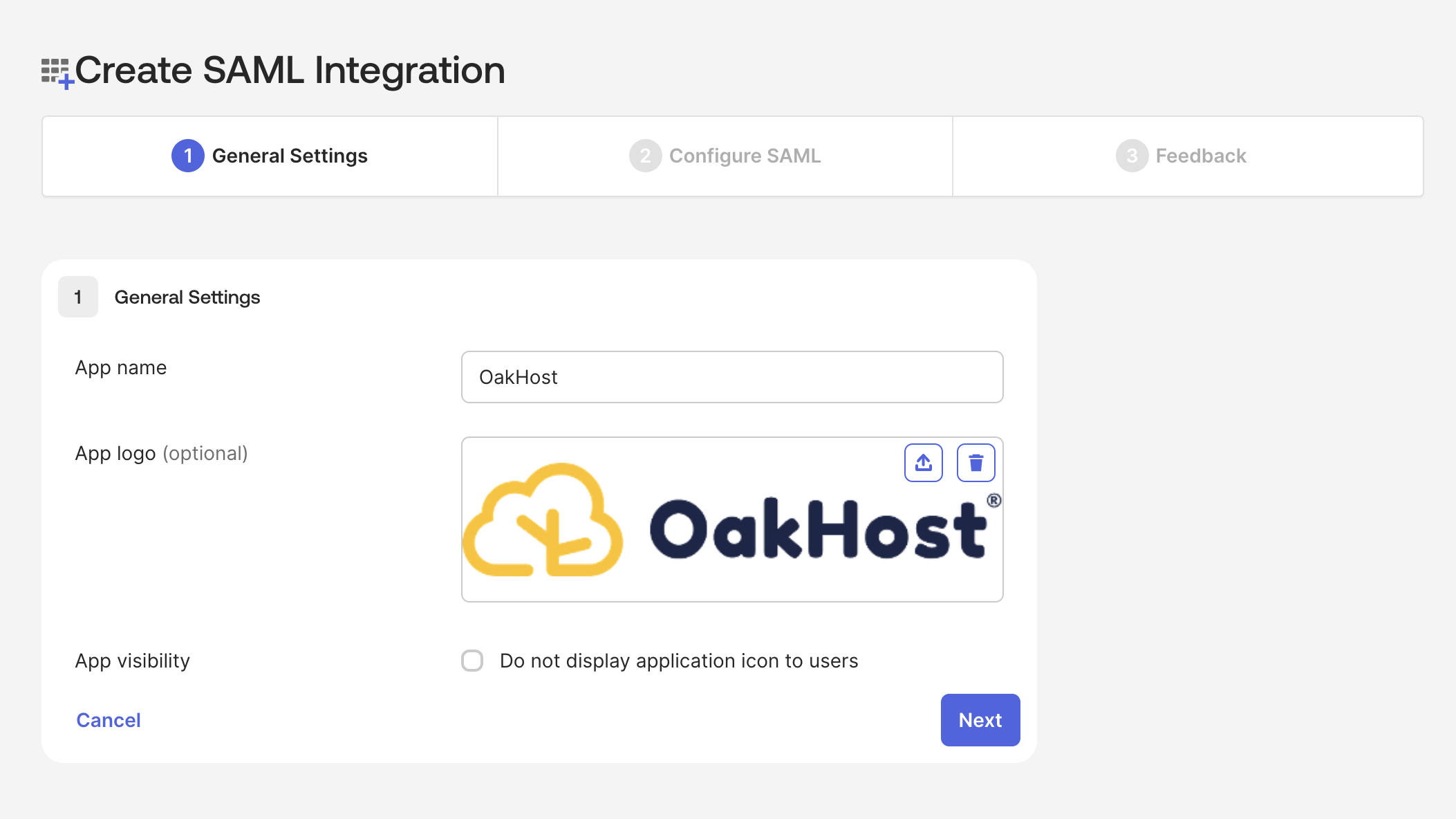
- App name: Enter "OakHost" as the application name
- App logo: Upload the OakHost logo (optional)
- Click Next
Step 3: Configure Okta SAML Settings
- Sign in to the OakHost Customer Panel and navigate to
User Management>Manage SSO. - Copy the Entity Reply URL (ACS) and Entity ID provided there.
- Return to Okta and fill in the SAML settings as shown:
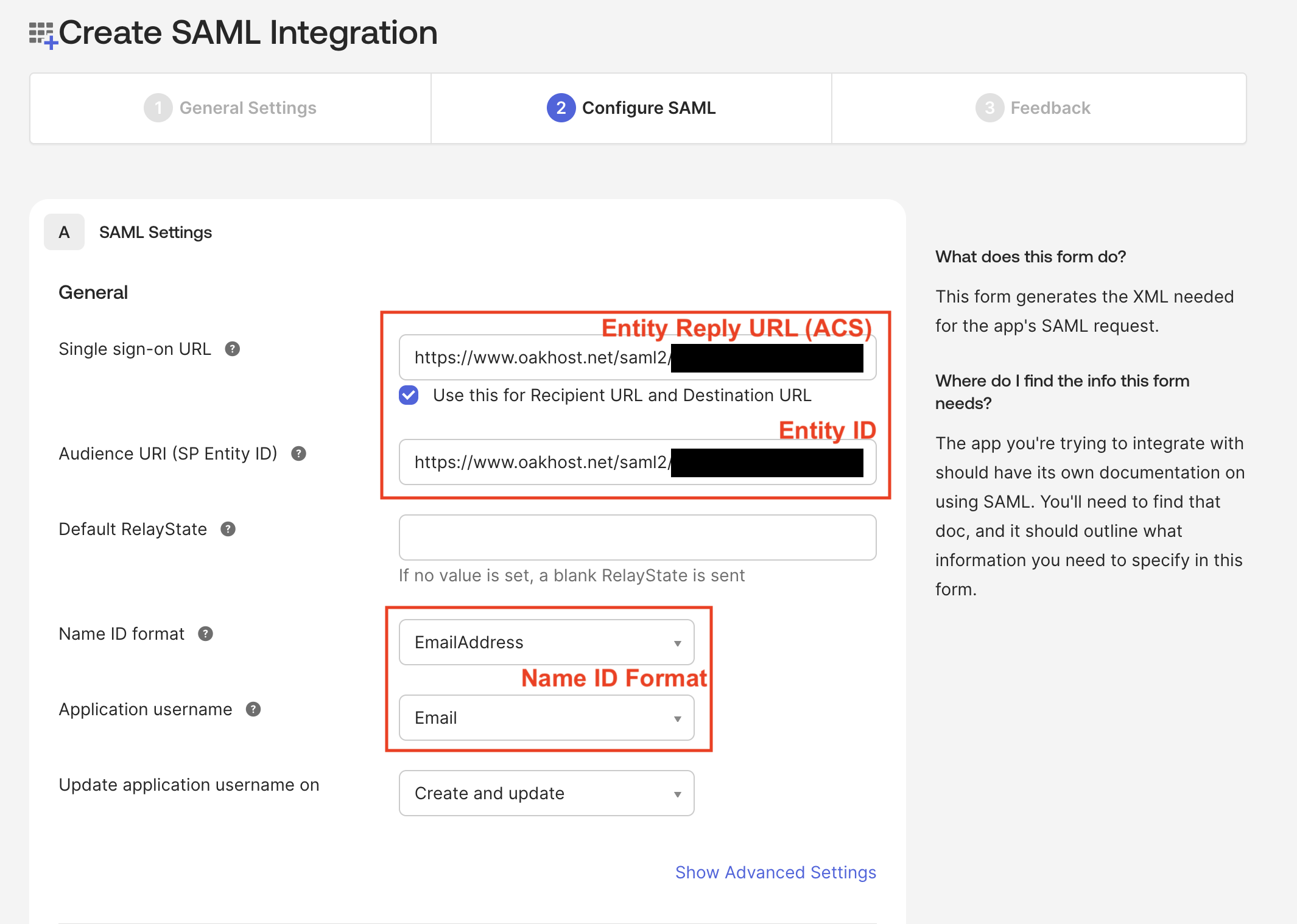
- Make sure Name ID format is set to
EmailAddressand Application username is set toEmail. - Click Next.
- Complete the Feedback section and click Finish.
Step 4: Configure OakHost SAML Settings
- In Okta, navigate to the newly created OakHost application and select the Sign On tab.
- Click on Show details in the SAML 2.0 section.
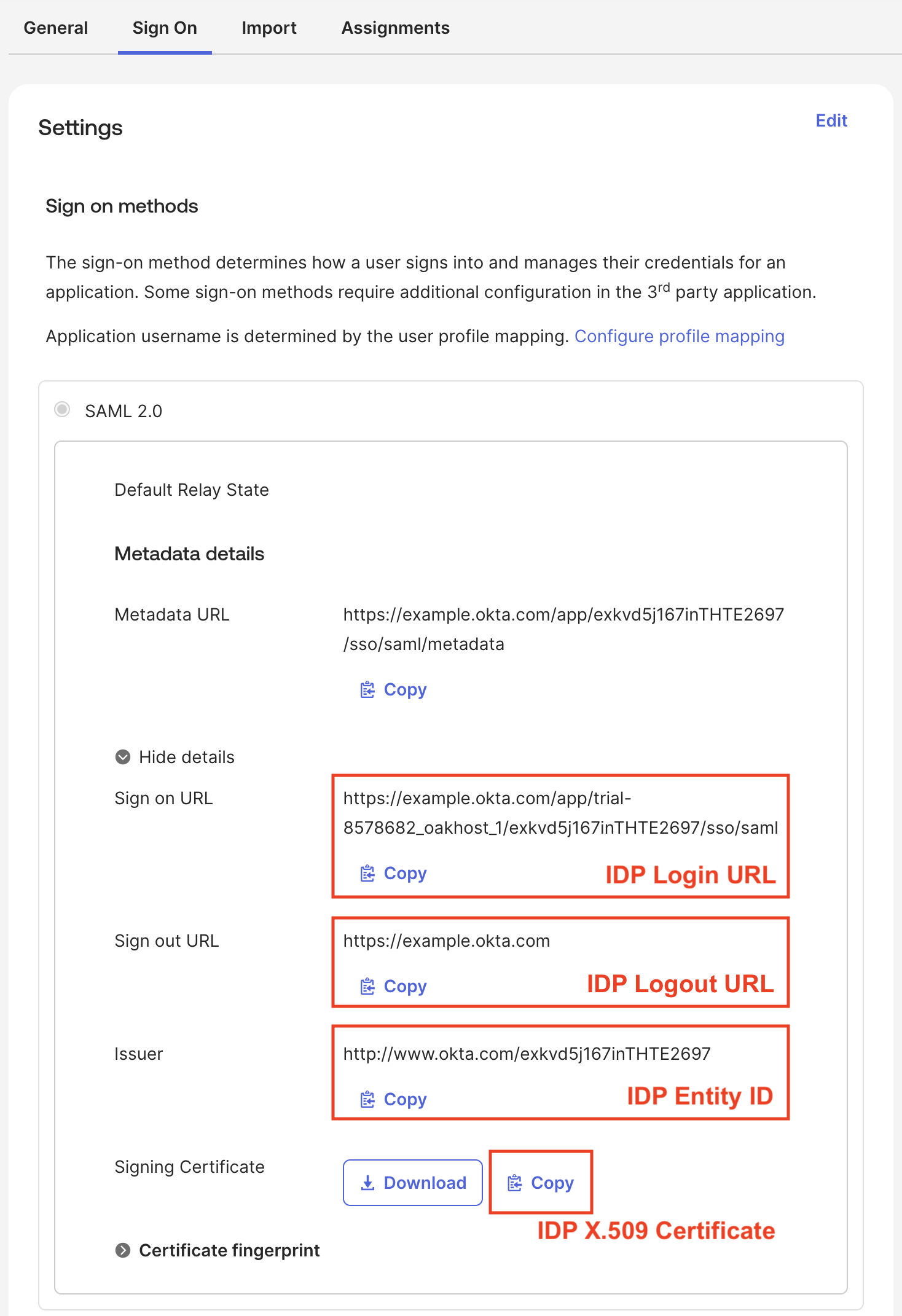
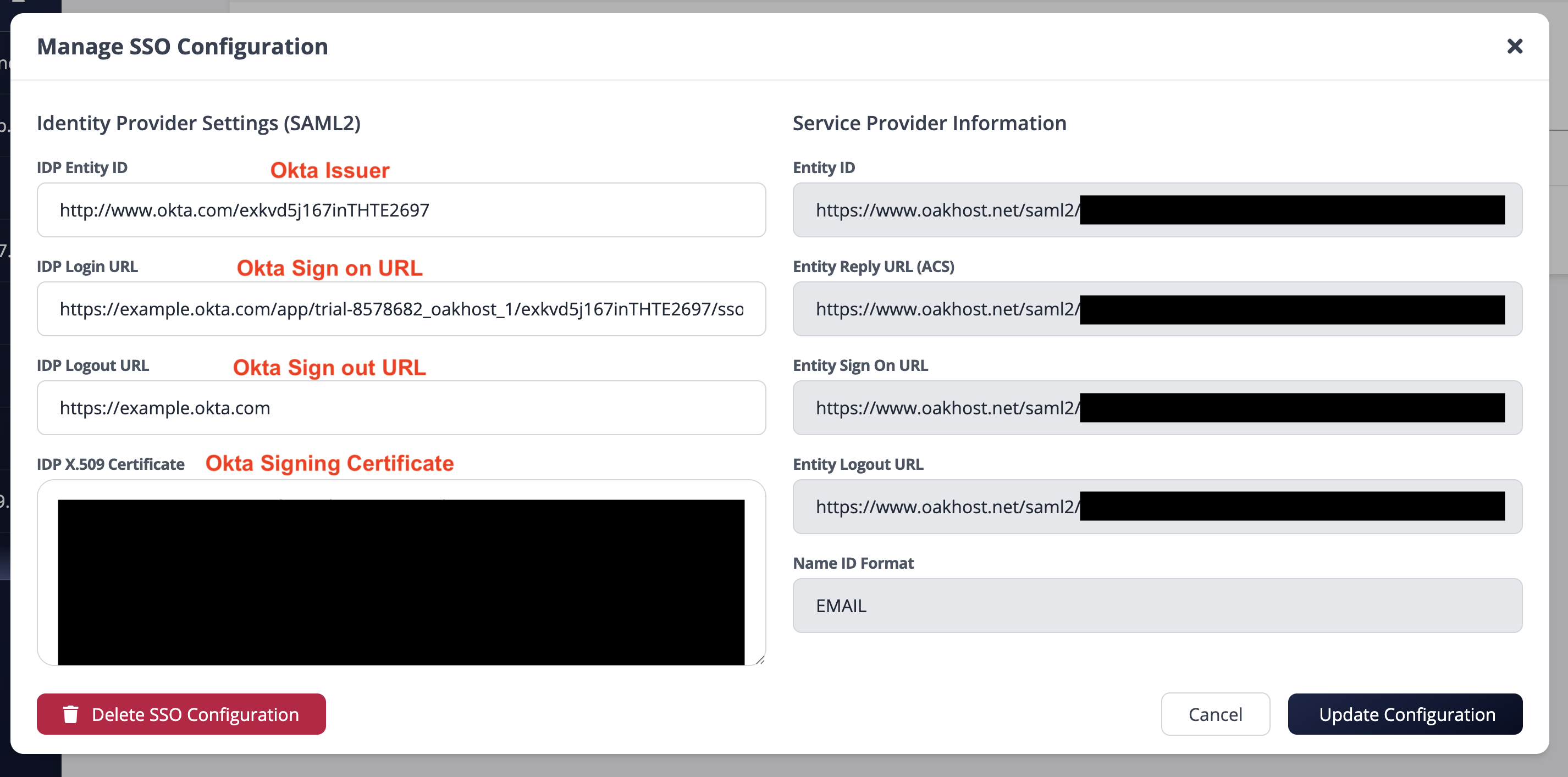
- Copy the following values and paste them into the OakHost Customer Panel under
User Management>Manage SSO:- Sign On URL: Corresponds to
IDP Login URL - Sign Off URL: Corresponds to
IDP Logout URL - Issuer: Corresponds to
IDP Entity ID - Signing Certificate: Click the Copy button and paste it into the
IDP X.509 Certificatefield in OakHost.
- Sign On URL: Corresponds to
- Click Create Configuration in the OakHost Customer Panel.
Step 5: Test Integration
The SSO configuration is now complete. You can test the integration by logging out of the OakHost Customer Panel. On the login screen, enter your email address and click Sign in via SSO. You will be redirected to Okta for authentication.