Full Disk Encryption - FileVault
Security and privacy is important. Thankfully, Apple offers with macOS full disk encryption out of the box, called FileVault. At OakHost we think this is a really good idea, and therefore we fully support it thanks to our KVM solution.
Most Mac hosting providers however can't support FileVault encryption due to the fact that a password is required upon every reboot, to unlock the encrypted drive. At this point in time, services like Screen Sharing or SSH aren't yet started, so there is no way to enter the encryption password remotely.
OakHost solves this problem thanks to our bespoke KVM solution which works independently of the state of the Mac itself. Acting as an external device connected via standard HDMI and USB ports, the encryption password can even be entered if no service is running on the Mac mini itself.
Enabling FileVault will prevent you from accessing your Mac via Screen Sharing or SSH after a restart, until you have entered the login password via KVM. This is because the services are started after the disk has been unlocked.
How can I reboot without having to enter my password on boot?
If you want to restart your Mac without entering your password on boot, you can pre-register your password for the next startup process by issuing the following command:
sudo fdesetup authrestart
How can I enable/disable disk encryption?
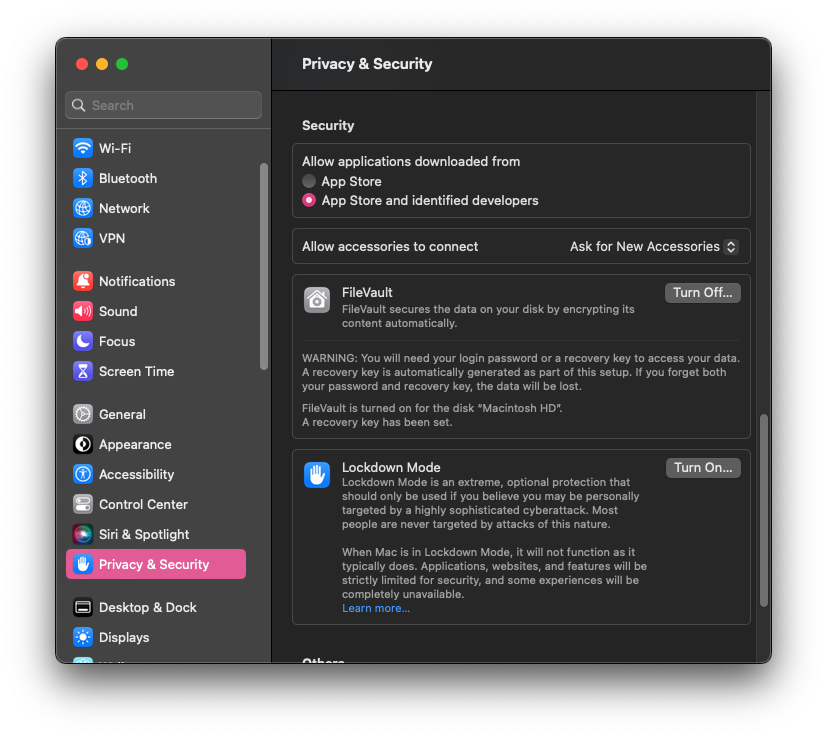
FileVault can be easily enabled or disabled in the System Settings. You don't need to disable it before cancelling your
service: after cancellation, we perform a full wipe of the Mac automatically. If you prefer to erase your data
yourself beforehand, you can use Erase All Content and Settings in the System Settings.
- Open the
System Settings, navigate toSecurity & Privacyand selectFileVault. - Click the
Turn off/on FileVault...button.
Why can't I enter the startup password through Screen Sharing?
During startup, the Screen Sharing service hasn't been started. It's configuration is part of the encrypted disk, so there is no way for macOS to start the service without unlocking the disk first. You can always enter the password using our KVM service through the Customer Panel.
Using an AI assistant? Troubleshooting guidance for all OakHost docs, including when to contact support, is available at docs.oakhost.com/llms.txt.