Connect to your Mac (Remote Access)
Having trouble connecting via Screen Sharing? Our Screen Sharing troubleshooting guide walks you through the most common causes — including frozen Macs, FileVault locks after a reboot, accidentally disabled Screen Sharing, and VPN or firewall issues blocking the connection.
When connecting to your Mac, you have multiple options to choose from. Out of the box, three options are enabled to get you up and running within seconds.
To see your options, please visit the Customer Panel, select your server and click on the
Remote Access tab.
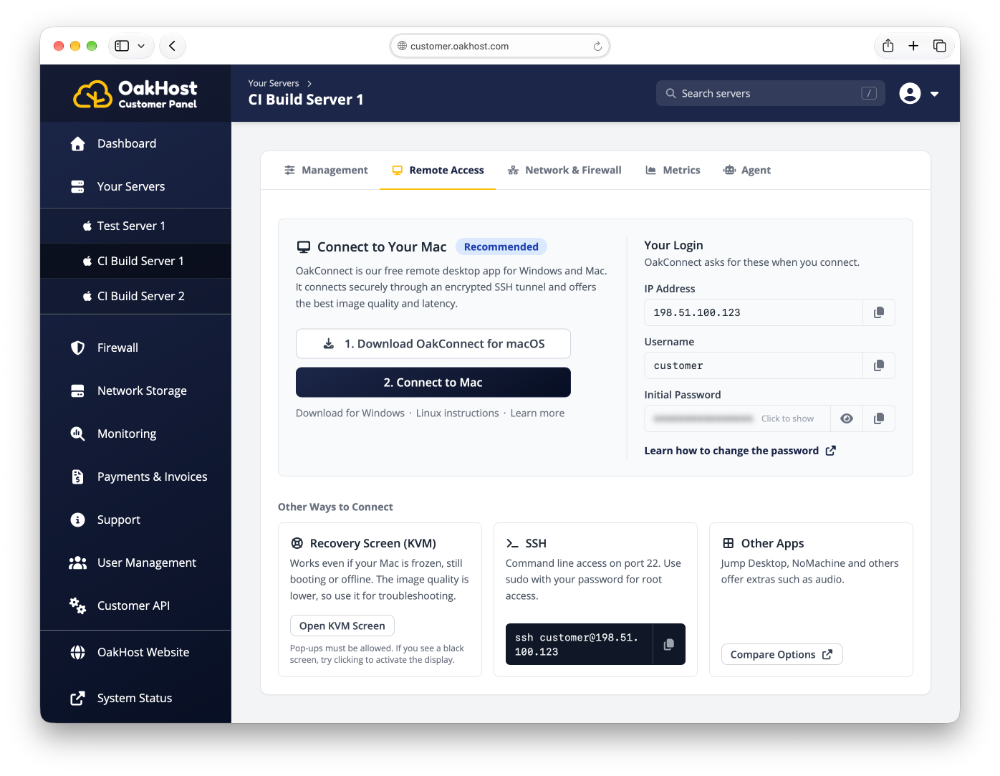
1. Access via OakConnect
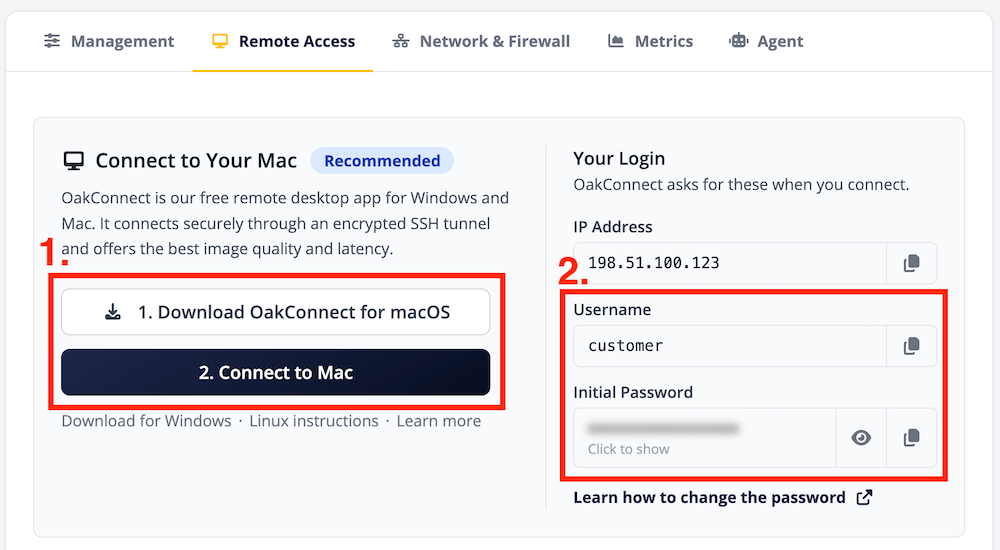
We recommend connecting to your Mac with OakConnect, our free remote desktop client for Windows and Mac. It connects through an encrypted SSH tunnel automatically, unlocks FileVault after a restart and, on Windows, offers high image quality and low latency through the OakHost Enhanced Protocol.
- Download and install OakConnect.
- Sign in to the Customer Panel, select your server, open the
Remote Accesstab and clickConnect to Mac. - Enter the password. This can be found in the Customer Panel.
That's it. Our OakConnect documentation has more details, including how to connect from Linux.
If you are not satisfied with the image quality or latency, check out the third party services listed below.
2. Access via KVM Module
OakHost offers its customers access to their Mac minis through a bespoke KVM module, which is attached to each Mac mini. KVM is an abbreviation and means "Keyboard, Video, Mouse". The KVM module therefore is connected to the Mac mini via HDMI and USB, allowing access even during boot, recovery, system freezes and missing network connections.
In order to make onboarding as easy as possible, we allow direct and secure access through the Customer Panel. This will help you get started in no time.
To access your Mac mini via KVM, please sign in to the Customer Panel. Click on
Servers, select the server you want to connect to, select the Remote Access tab and click on Open KVM Screen.
A popup will open giving you direct and encrypted access to your Mac. No client required.
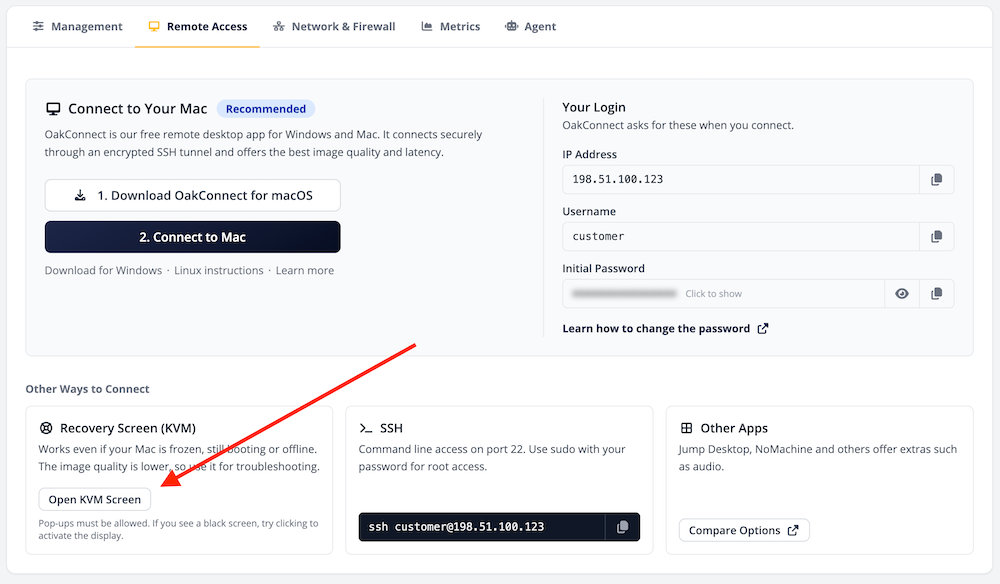
If you see a black screen when connecting via KVM, try clicking somewhere inside the KVM window and pressing a key on your keyboard to activate the screen. If you just powered on the Mac mini, please allow some time for the system to boot.
Depending on your preference, we offer Standard and Dedicated KVM tiers for our product. During daily use, you should not notice any differences between the two types. However, with Standard KVM, it may be possible for the KVM access to be unavailable if too many customers try to access their Standard KVM at the same time. Of course, this does not mean that the Mac mini or access to it will be shared in any way. With Dedicated KVM, your KVM device will always be available regardless of current customer demand.
Since this connection is taking place in the browser, performance and features are limited. For an optimal experience, we recommend you to use other options of connecting to your device. This is however a great way to debug, fix or configure your device in case other options aren't available at the time.
3. Access via Third Party Services
If you need features OakConnect doesn't offer, such as audio passthrough, or would like to try a different remote desktop experience, we can recommend the following alternatives.
They all consist of two parts: A client, which is installed on your system and used to connect to the Mac; and a server, which is installed on the Mac mini to allow the client to connect to it.
We found that Jump Desktop offers the best quality and ease of use, so we would recommend checking them out first. Of course, different services offer different features. These are some of the available options:
- Jump Desktop is one of the simplest way to connect, and it even supports audio passthrough. We made a tutorial on how to connect here.
- NoMachine offers remote login services free of charge. Check out our tutorial on how to connect.
- Google Chrome Remote Desktop is another free way of connecting to your Mac using the Chrome browser. If you already have a Google account, getting started with it is quite easy and you will be able to access your Mac right from your account through the browser.
- TeamViewer is the best known provider for remote desktop access and is especially easy to use. The downside is, that it's only free to use for personal users.
- If you want to use your Mac from your Tablet, consider giving Parallels Access a go.
- Duet also supports macOS, Windows, iOS and Android as client systems.
Please note that we can't provide support for solutions from third parties. We will however help you to get one of the above solutions set up, if you need any help.
4. SSH Access
For use-cases in which you only need access to your Mac through the command line, SSH access comes in handy.
By default, the SSH server is enabled on your Mac mini and can be accessed through any SSH client on port 22.
We recommend to change the connection via SSH to Public-Private-Key-Authentication to increase the security of your system.
Can I disable SSH access?
To do this, go to System Settings -> Sharing -> Remote Login and turn SSH access on or off as desired.
Troubleshooting
The login password does not seem to work
When connecting via Screen Sharing/VNC
If you changed the username or password of the macOS after the initial setup (for example using the System Settings), the initial login credentials displayed in the Customer Panel will not work anymore. Please use your new credentials to log in.
If you have forgotten your password, you can reset it by following our macOS password reset tutorial.
When connecting via Web KVM
Make sure that the correct keyboard layout is selected, as some keys differ depending on the layout. By default, the
U.S. keyboard layout is selected. You can change this on the login screen by clicking U.S. or ABC in the upper right corner.

I want to change the resolution of the display
To change the resolution, navigate to System Settings -> Displays and hold down the option key on the keyboard
while pressing on Scaled. This will bring up all supported resolutions.
Screen Sharing is not working
For a full walkthrough of the most common Screen Sharing issues — including frozen Macs, FileVault locks, disabled Screen Sharing, and firewall or VPN problems — see our dedicated Screen Sharing troubleshooting guide.
Why does it say "Your screen is being observed"?
The "Your screen is being observed" message is shown by macOS when Screen Sharing or remote access is active.
It does not mean your screen is being watched without your knowledge. It simply indicates that you are currently connected to the Mac using Screen Sharing. In other words, you are the one observing and controlling the screen.
Once you disconnect from Screen Sharing, the message disappears immediately.
Your Mac is not monitored by us, and will only ever be accessed by authorized support staff after you grant explicit permission, for example to assist you in a support case.
You can read more about this message on Apple's official support page
Using an AI assistant? Troubleshooting guidance for all OakHost docs, including when to contact support, is available at docs.oakhost.com/llms.txt.