Can't connect via Screen Sharing?
If Screen Sharing isn't connecting, one of the four common causes below is usually the culprit. Each section explains what is happening and how to fix it.
All of the fixes below require you to see your Mac's screen even when Screen Sharing is unavailable. You can always do this using the KVM module in the Customer Panel — it connects directly via HDMI and USB, so it works even during boot, after a crash, and when the network is unreachable. See Connect to your Mac to learn how to open a KVM session.
1. The Mac froze and needs to be rebooted
If your Mac has become unresponsive (frozen), Screen Sharing stops working because macOS can no longer accept incoming connections.
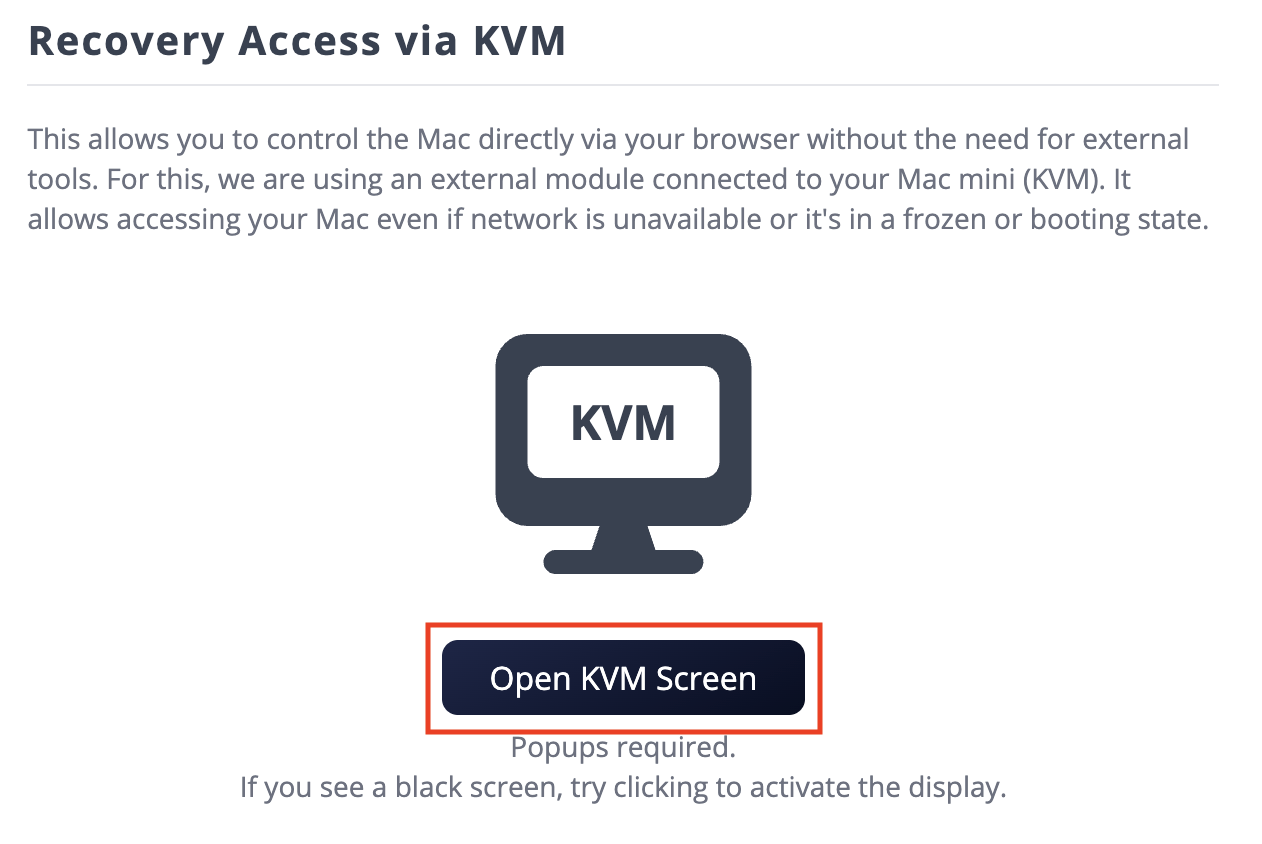
How to identify it: Open a KVM session in the Customer Panel. If the screen is completely frozen and does not react when you move the mouse or press a key, the Mac has locked up.
How to fix it:
- Sign in to the Customer Panel.
- Click Servers and select your Mac.
- Open the Remote Access tab and click Open KVM Screen to confirm the Mac is unresponsive.
- Navigate to the Management tab on the same server page.
- Click Force Reboot to restart the Mac.
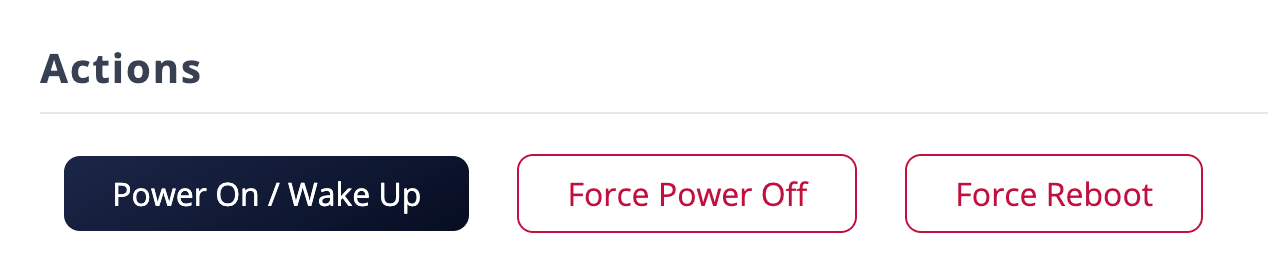
After the restart, wait about a minute for macOS to fully load, then try connecting via Screen Sharing again.
A force reboot immediately shuts down the Mac. Any unsaved work will be lost.
2. Mac rebooted and is locked with FileVault
If FileVault disk encryption is enabled, your Mac will show a password prompt before macOS even starts after every reboot. Screen Sharing only becomes available once macOS has fully loaded — so until you enter the FileVault password, Screen Sharing cannot be reached.
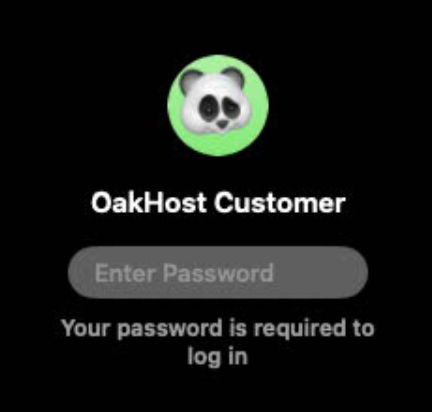
How to identify it: Open a KVM session. If you see a login screen after the Mac has been rebooted, your Mac is likely for the FileVault password.
How to fix it:
- Open a KVM session via the Customer Panel.
- Sign in to your Mac using your regular macOS user account password.
- Wait for macOS to finish loading. This typically takes a few seconds.
- Once the desktop appears, close the KVM session and connect via Screen Sharing as usual.
Starting with macOS Tahoe, you can also unlock your Mac using SSH.
3. Screen Sharing has been disabled or Remote Management is enabled
Screen Sharing may have been turned off, or the Remote Management service may have been switched on. These two services conflict — when Remote Management is active, Screen Sharing no longer accepts standard VNC connections, so clients like macOS Screen Sharing and RealVNC Viewer will be unable to connect.
How to identify it: You receive a "connection refused" or "unable to connect to host" error even though the Mac appears to be running normally.
How to fix it:
- Open a KVM session via the Customer Panel.
- On the Mac, open System Settings.
- Click General in the sidebar, then select Sharing.
- Make sure Screen Sharing is switched on.
- Make sure Remote Management is switched off. If both appear to be on, turn off Remote Management first, then turn Screen Sharing back on.
- Close System Settings. Screen Sharing will be available again immediately.
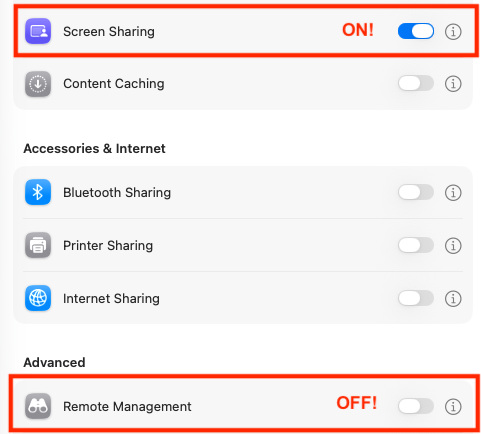
Do not enable Screen Sharing and Remote Management at the same time. Remote Management is designed for managed device environments and takes over the VNC port, which blocks standard Screen Sharing clients.
4. A VPN or firewall on the Mac is blocking the connection
A VPN client running on your Mac may route or block incoming traffic in a way that makes Screen Sharing unreachable from outside. A software firewall on the Mac can also block incoming connections on the Screen Sharing port (TCP 5900). There are two places to check: the OakHost hardware firewall and the macOS built-in firewall.
Check the OakHost hardware firewall
The OakHost firewall runs outside your Mac and filters traffic before it ever reaches the device.
- Sign in to the Customer Panel.
- Click Firewall in the left sidebar.
- Open the firewall assigned to your server.
- Under Inbound Rules, check that a rule exists that allows TCP port 5900 (Screen Sharing / VNC). If it is missing, add it.
- Save the firewall. Changes take effect within about 30 seconds.
For more details on working with firewall rules, see Using the Firewall.
Disconnect a VPN or Firewall software
If a VPN client or firewall software is running on the Mac (such as WireGuard, OpenVPN, a corporate VPN or Little Snitch) it may be intercepting or blocking incoming connections.
- Open a KVM session via the Customer Panel.
- Find the VPN client or firewall in the macOS menu bar or in your Applications folder.
- Disconnect the VPN/firewall.
- Try connecting via Screen Sharing again.
If you need the VPN to remain connected, you may need to configure a split tunnel in the VPN client, or add a firewall exception, so that incoming Screen Sharing traffic on TCP port 5900 is not blocked or re-routed by the VPN.