OakConnect Remote Desktop
OakConnect is OakHost's remote desktop client for Windows and Mac. It connects you to your Cloud Mac through an encrypted SSH tunnel, unlocks FileVault after a restart and tells you in plain language what went wrong if a connection fails. On Windows, it also supports the OakHost Enhanced Protocol for a smooth, high-quality remote desktop.
OakConnect is free for personal use, and free for commercial use for all OakHost customers.
Connecting to Your Mac
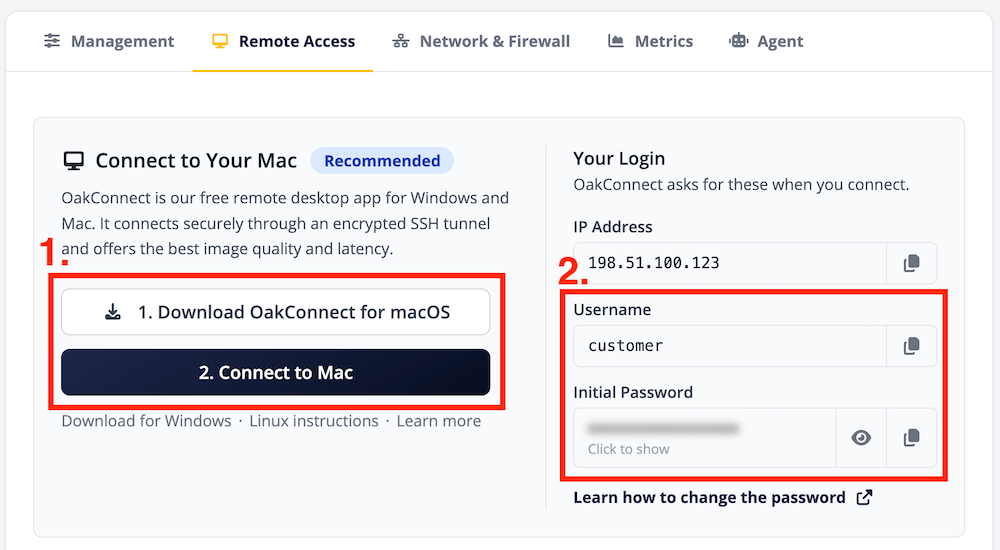
- Download and install OakConnect using the buttons above. On Windows, run the installer. On the Mac, open the disk
image and drag OakConnect into your
Applicationsfolder. - Sign in to the Customer Panel, select your server, open the
Remote Accesstab and clickConnect to Mac. This opens OakConnect with your Mac's address already filled in. If OakConnect doesn't open, enter the IP address shown on the same tab in OakConnect under Connect to a Mac and click Connect. - Enter the username and password of your macOS user account. Tick Remember me to store the password securely in Windows Credential Manager or the macOS Keychain.
- When connecting to a Mac for the first time, OakConnect shows the Mac's security fingerprint. Confirm it to trust this Mac. OakConnect remembers it and will warn you should it ever change.
OakConnect now establishes the secure connection and shows each step while it does so. On Windows, the remote desktop opens in OakConnect's own viewer. On the Mac, it opens in Apple's Screen Sharing app.
Every Mac you connect to appears under Recent connections, together with its security status. Double-click an entry to reconnect.
Your Mac needs Screen Sharing and Remote Login turned on in System Settings → General → Sharing. Both are
enabled on new OakHost Macs.
Features
| Feature | Windows | Mac |
|---|---|---|
| Encrypted connection through an automatic SSH tunnel | ✓ | ✓ |
| FileVault unlock after a restart | ✓ | ✓ |
| Recent connections and saved passwords | ✓ | ✓ |
| Descriptive status and error messages | ✓ | ✓ |
| OakHost Enhanced Protocol | ✓ | –¹ |
| Clipboard sharing and Mac pointer shapes | ✓ | –¹ |
¹ On the Mac, OakConnect sets up the secure connection and then opens your session in Apple's built-in Screen Sharing app, which provides its own viewer and clipboard sharing.
The encrypted connection, the Enhanced Protocol and the FileVault unlock are available on all OakHost Macs by default.
Security
Encrypted Connections
OakConnect always connects through an encrypted SSH tunnel when possible, so your screen, keystrokes and password are protected. It remembers the security level of every Mac you connect to.
If an encrypted connection isn't possible, OakConnect tells you why and asks before connecting without encryption. It never downgrades a connection without your consent. Unencrypted sessions are marked with a red warning that stays visible for the whole session.
Blocking the Screen Sharing Port
Since OakConnect reaches Screen Sharing through SSH, the Screen Sharing port doesn't need to be reachable from the internet. You can further secure your Mac by blocking it in the OakHost Firewall:
- Sign in to the Customer Panel and select
Firewallin the left sidebar. - Select the firewall assigned to your Mac, or create a new one.
- Remove the inbound rule for Screen Sharing (TCP port
5900). Keep the rule for SSH (TCP port22). - Save the firewall and make sure it is assigned to your server.
With the Screen Sharing port blocked, remote desktop clients that connect to Screen Sharing directly, such as Apple's Screen Sharing app without OakConnect or TigerVNC, will no longer be able to connect.
FileVault Unlock After a Restart
If FileVault is enabled, your Mac waits for its disk to be unlocked after every restart. Until then, Screen Sharing isn't available.
OakConnect detects when your Mac is waiting for FileVault and asks whether it should unlock it. Confirm, and OakConnect unlocks the disk using your password, waits for macOS to finish starting and then connects you to your desktop.
OakHost Enhanced Protocol (Windows)
The OakHost Enhanced Protocol is OakHost's own remote desktop protocol, built for working on a Cloud Mac. Compared to standard Screen Sharing, it offers:
- Low latency and high image quality at up to 60 frames per second and up to 4K resolution
- Adaptive streaming that adjusts to your connection automatically
- Clipboard sharing between Windows and your Mac
- Accurate pointer shapes, showing the same cursor as macOS
The Enhanced Protocol is used automatically when connecting to an OakHost Mac. The viewer shows
Connected securely · Enhanced Protocol while it is active.
If the Enhanced Protocol can't be started, OakConnect continues with standard Screen Sharing through the same encrypted
connection and shows Connected securely · Screen Sharing Fallback.
You can adjust the Enhanced Protocol for each Mac in the viewer's settings:
- Settings → Enhanced Protocol → Automatic / Off turns the Enhanced Protocol on or off for the next connection.
- Settings → Enhanced Protocol → Quality and bandwidth… lets you choose between
Standard,HigherandLow bandwidthquality, as well as a maximum of 30 or 60 frames per second. Changes apply immediately.
Using the Viewer (Windows)
- Keyboard: All keys are sent to your Mac.
Ctrlacts as⌘ CommandandAltas⌥ Option. You can switch⌘ Commandto the Windows key under Settings → Command key. - Clipboard: Text copied on Windows is available on your Mac when you click into the viewer. Text copied on your Mac is available on Windows when you leave the viewer. Clipboard sharing requires an encrypted connection.
- Full screen: Click the full screen button in the toolbar or press
Ctrl+Alt+Enter. The toolbar hides after a moment; move your mouse to the top edge of the screen to show it again. - Appearance: Choose between
System,LightandDarkunder Appearance on the connection screen or in the viewer's settings.
Using OakConnect on Mac
On the Mac, OakConnect takes care of the secure connection, FileVault and your recent connections, and then opens your session in Apple's Screen Sharing app. The secure connection stays open until you close it from OakConnect's connection list or quit OakConnect.
Connecting From Linux
OakConnect is not available for Linux. You can still connect securely by creating the SSH tunnel yourself and using a VNC client of your choice, such as Remmina or TigerVNC.
-
Open a terminal and create an SSH tunnel to your Mac. Replace
userwith your macOS username and203.0.113.5with the IP address shown in the Customer Panel:ssh -N -L 5901:localhost:5900 user@203.0.113.5Keep the terminal open for as long as you are connected.
-
Connect your VNC client to
localhoston port5901. -
Log in with the username and password of your macOS user account.
If your VNC client doesn't support the macOS login method, you need to set a separate VNC password on your Mac. In
System Settings → General → Sharing, click the ⓘ button next to Screen Sharing and enable
VNC viewers may control screen with password.

The VNC password also allows unencrypted connections to Screen Sharing. Make sure to block the Screen Sharing port in the OakHost Firewall, so that Screen Sharing can only be reached through your SSH tunnel.
Updates
OakConnect checks for updates regularly and downloads them in the background. Updates are installed the next time you start OakConnect, or when you choose Restart to update. OakConnect never restarts during an active session. On the Mac, you can also check manually under OakConnect → Check for Updates….
To turn off automatic updates, untick Automatically check for and install updates in the OakConnect settings.
Troubleshooting
OakConnect explains every failed connection in plain language and suggests what to do next. Under Show details, you'll find the underlying error, if available.
"The Enhanced Protocol is not available for this destination"
The encrypted connection and the Enhanced Protocol are only available for Macs hosted at OakHost. Please make sure you entered the IP address shown in the Customer Panel.
The Enhanced Protocol is currently also not available when connecting to your Mac through a VPN.
The Mac's Security Fingerprint Has Changed
OakConnect stops the connection if your Mac presents a different fingerprint than before. This is expected after reinstalling macOS. Otherwise, please contact our support before connecting.
The Connection Was Refused or Timed Out
Make sure your Mac is running and that your firewall allows SSH (TCP port 22). If your Mac doesn't respond, you can
always reach it through the KVM module in the Customer Panel. See Connect to your Mac and our
Screen Sharing troubleshooting guide.
Reporting an Issue
If you run into a problem, choose Report an issue in OakConnect's main window or in the error message to send us a description. You can optionally add your email address if you would like a reply.
Privacy
OakConnect stores your recent connections, trusted fingerprints and settings locally on your computer. Passwords are only stored when you tick Remember me, and then only in Windows Credential Manager or the macOS Keychain.
Anonymous error reports are only sent if you opt in, either when first starting OakConnect or later in its settings. They never contain your screen or clipboard contents.
Uninstalling OakConnect
Windows: Open Settings → Apps → Installed apps, select OakConnect and click Uninstall. Your settings and
recent connections are kept in %LOCALAPPDATA%\OakHost\OakConnect\, and saved passwords in Windows Credential Manager
as OakConnect:user@address. Delete them manually for a full reset.
Mac: Quit OakConnect and move it from your Applications folder to the Trash. Your settings are kept in
~/Library/Application Support/OakHost/OakConnect/ and saved passwords in the Keychain.